Table of Contents
- What makes a book interior print-ready?
- Set the document around the finished book size
- Set trim size, bleed, safe area and gutter
- Account for binding before placing text or images
- Prepare text, images and color correctly
- Separate readable black text from rich black areas
- Check resolution, transparency and image profiles
- Export and inspect the final PDF
- What to send the printer with the interior file
- Common book interior errors that delay production
- FAQ: Print-ready book interior files
- Request a prepress review for your book project
A practical prepress guide to preparing a print-ready book interior PDF, including trim size, bleed, gutter margin, image resolution, color, fonts and final PDF inspection.
What makes a book interior print-ready?
A print-ready book interior is a final production PDF built to the correct finished size, page count, bleed, margins, color settings, image quality and binding requirements. It should open and preflight without missing fonts, misplaced pages, unwanted color conversions or artwork sitting in the trim or gutter.
Definition: A book interior PDF contains the inside pages only, normally supplied as individual pages in reading order. It is different from a cover file, which includes the front cover, spine and back cover on a separate spread.
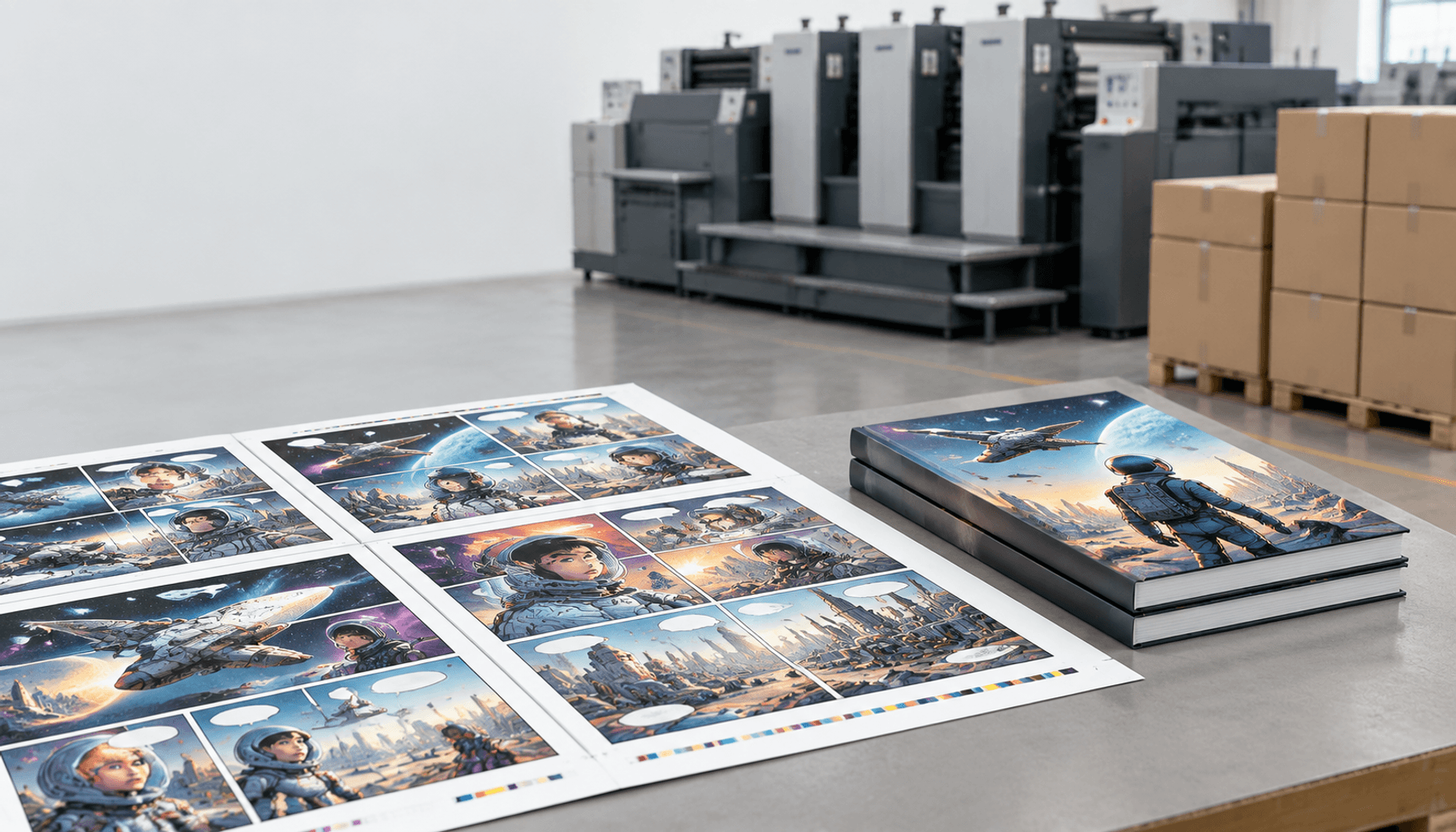
The file is not print-ready simply because it looks correct on screen. A page can appear attractive in a layout program and still fail during imposition, trimming or binding. For example, a full-page photograph may lose a narrow edge if it stops at the trim line, while a paragraph placed too close to the spine may become difficult to read after binding.
Use this quick production test before sending the file:
- The finished page size matches the quotation or specification.
- The page count and blank pages are intentional.
- Bleed extends beyond the trim where artwork reaches the edge.
- Text and important details stay inside the safe area.
- The gutter accounts for the selected binding and book thickness.
- Images have suitable effective resolution and embedded profiles.
- Fonts are embedded or converted according to the printer’s workflow.
- The exported PDF has been inspected at 100% and preflighted.
Lemon Printing handles prepress, printing, binding, finishing and quality inspection in-house. Providing a correctly specified interior file still matters because it lets the production team identify genuine design or specification issues before proofing. Final requirements can vary by binding, paper, quantity and finished size.
Set the document around the finished book size
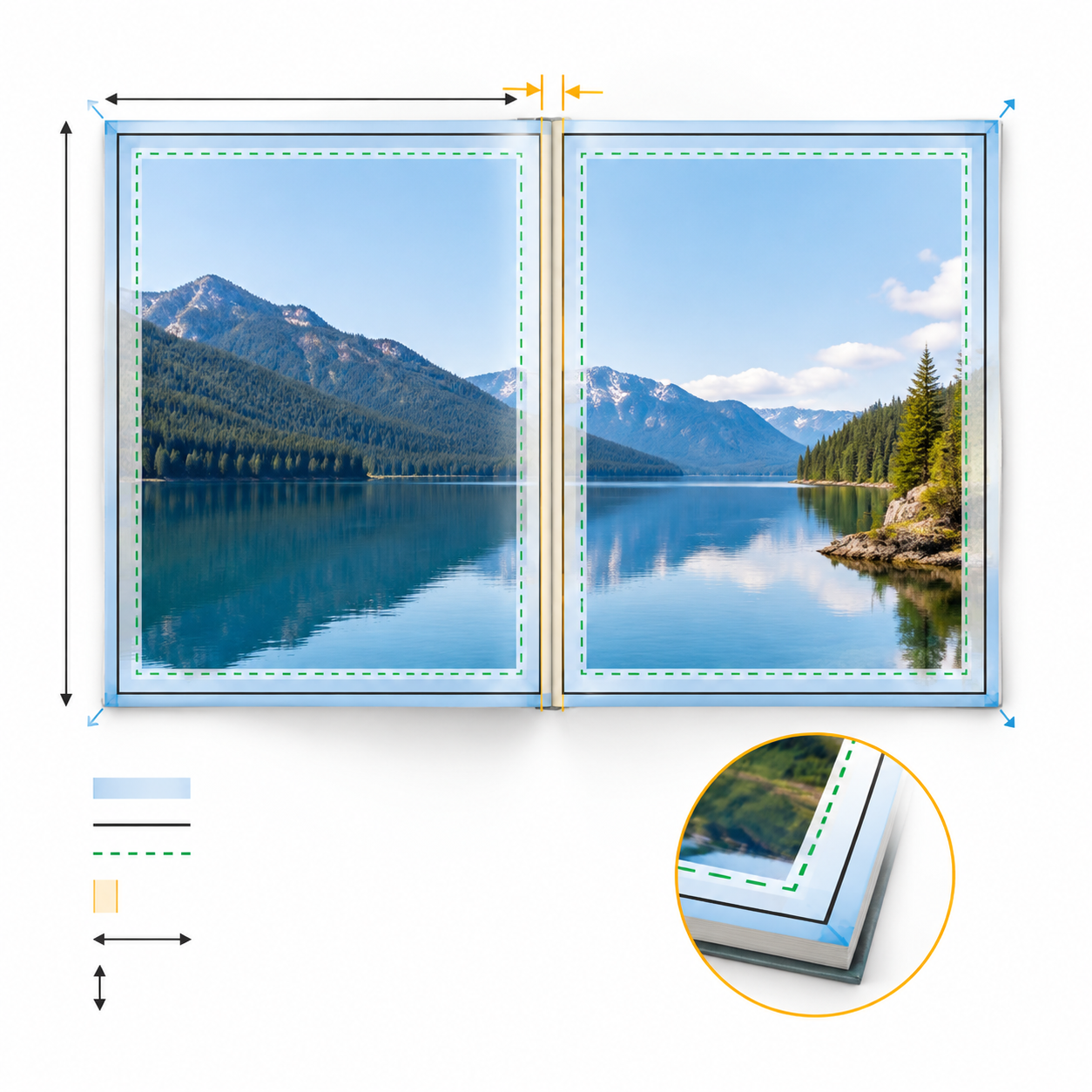
Build the interior from the finished, trimmed page size rather than the size of the sheet that will run through the press. The printer may impose several pages onto a larger sheet, but your document should describe one finished page unless the printer specifically requests printer spreads.
Before laying out the book, confirm these specifications:
- Trim size: The final width and height of one page after cutting, such as a specified US or European book format.
- Orientation: Portrait, landscape or square. Do not assume the cover and interior use the same orientation without checking.
- Page count: The total number of interior pages, including intentionally blank pages, copyright pages and inserts that belong in the book block.
- Binding: Perfect bound, sewn, hardcover, saddle stitched, Wire-O, spiral or another construction. Binding changes how much space is usable near the spine.
- Paper: Paper thickness and opacity affect the feel of the book, show-through, bulk and sometimes the binding specification.
For a standard reading book, set facing pages or mirrored margins so the inside and outside margins behave correctly. Do not manually create a two-page cover spread inside the interior PDF unless requested. For a book with different opening pages, such as a tipped-in image or foldout, identify those pages separately in the production notes.
For examples of book formats and binding constructions, review Lemon Printing’s custom book printing options. The product specification should be confirmed before the layout is locked.
Set trim size, bleed, safe area and gutter
For most full-bleed book interiors, extend artwork beyond the top, bottom and outside trim edges; do not normally add bleed into the binding edge unless the printer gives a specific instruction. A common starting point is 3 mm or 0.125 in on bleed edges, but the printer’s written specification takes priority.
| Area | What it controls | Practical setup |
|---|---|---|
| Trim size | The page size after cutting | Set the document page to the agreed finished size. |
| Bleed | Extra image or background area removed during trimming | Extend edge-to-edge artwork beyond the trim, commonly 3 mm or 0.125 in where specified. |
| Safe area | Zone protecting text and important details from trimming variation | Keep headlines, page numbers, faces and fine borders comfortably inside the trim. |
| Gutter | Additional inside margin near the binding | Set a binding-specific inside margin rather than using the outside margin as a guide. |
Bleed is needed when a background, photograph, rule or illustration must reach the page edge. A page with a white background and content well inside the trim may not need visible bleed, but the file should still follow the printer’s document setup. Borders deserve extra caution: even small trim variation can make a border look uneven, so consider moving it inward or using a design that tolerates variation.
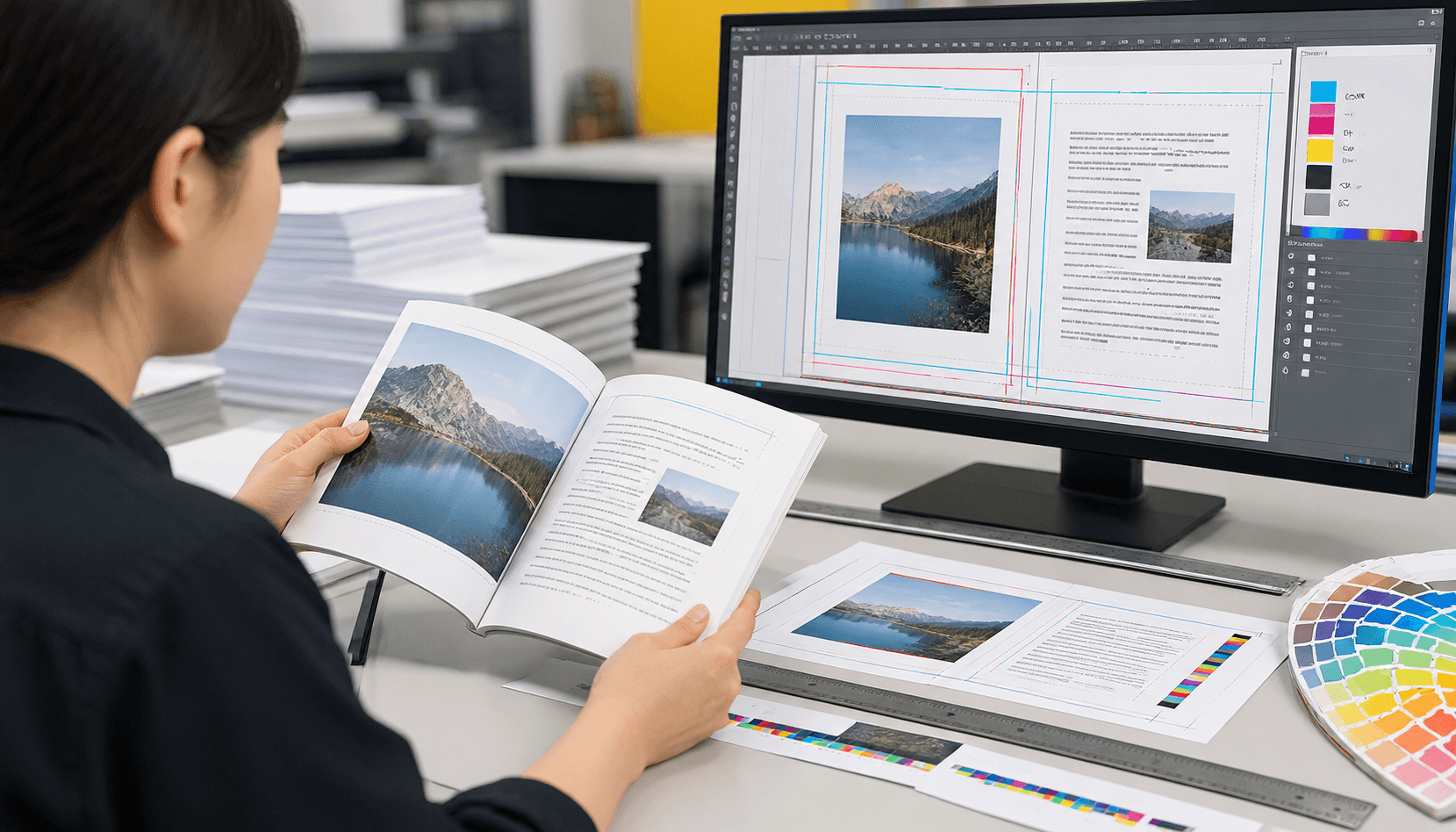
Do not use crop marks, registration marks or color bars in the submitted interior unless requested. These marks can be mistaken for artwork or interfere with imposition. If a printer supplies a template, use its page boxes and bleed settings instead of rebuilding them from memory.
Account for binding before placing text or images
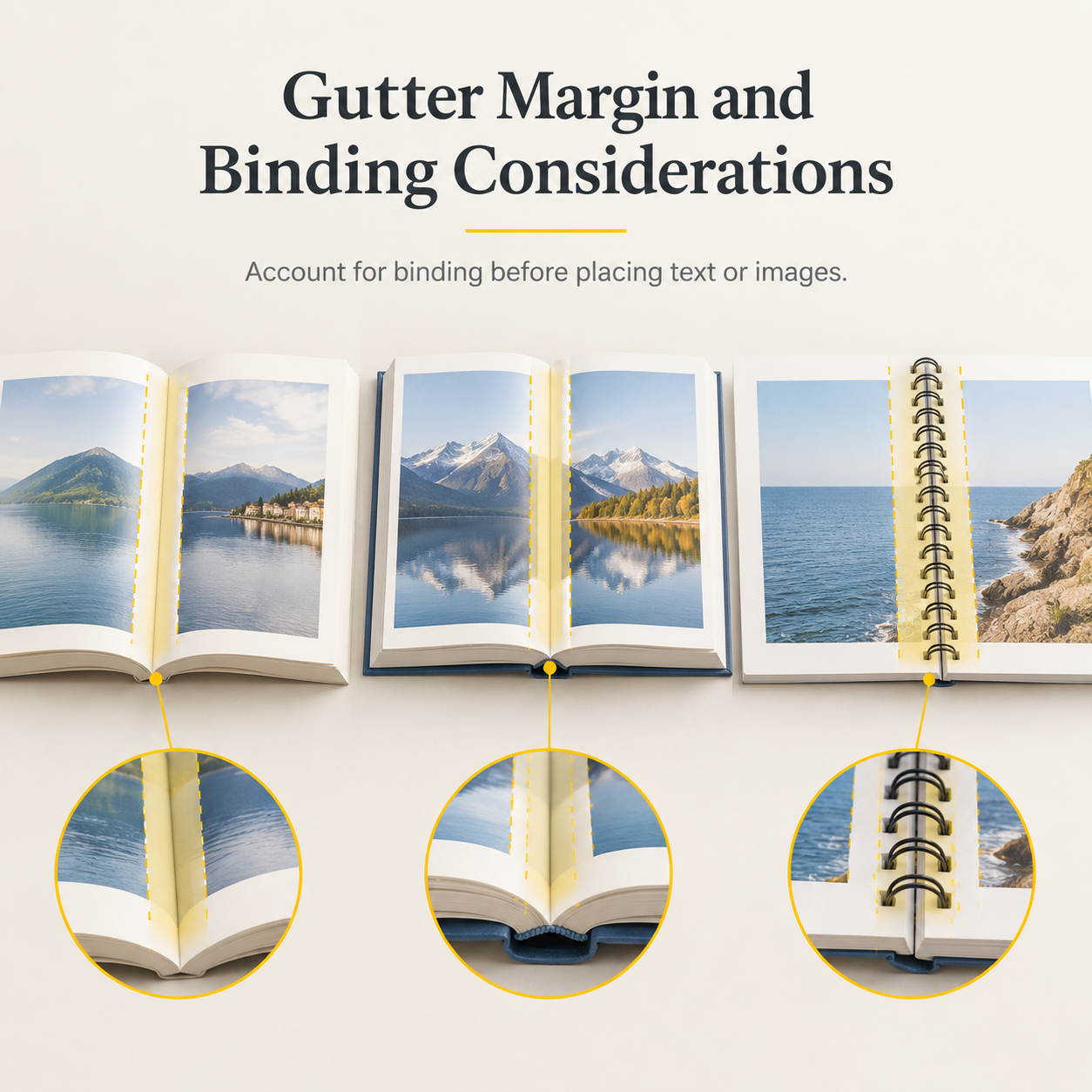
The correct gutter margin depends on how the book opens, how much paper is in the book block and how the pages are secured. It is the inside margin added near the spine so readers can see text without forcing the book open or losing content in the binding curve.
Binding does not affect every interior in the same way:
| Binding | Interior planning concern | What to confirm |
|---|---|---|
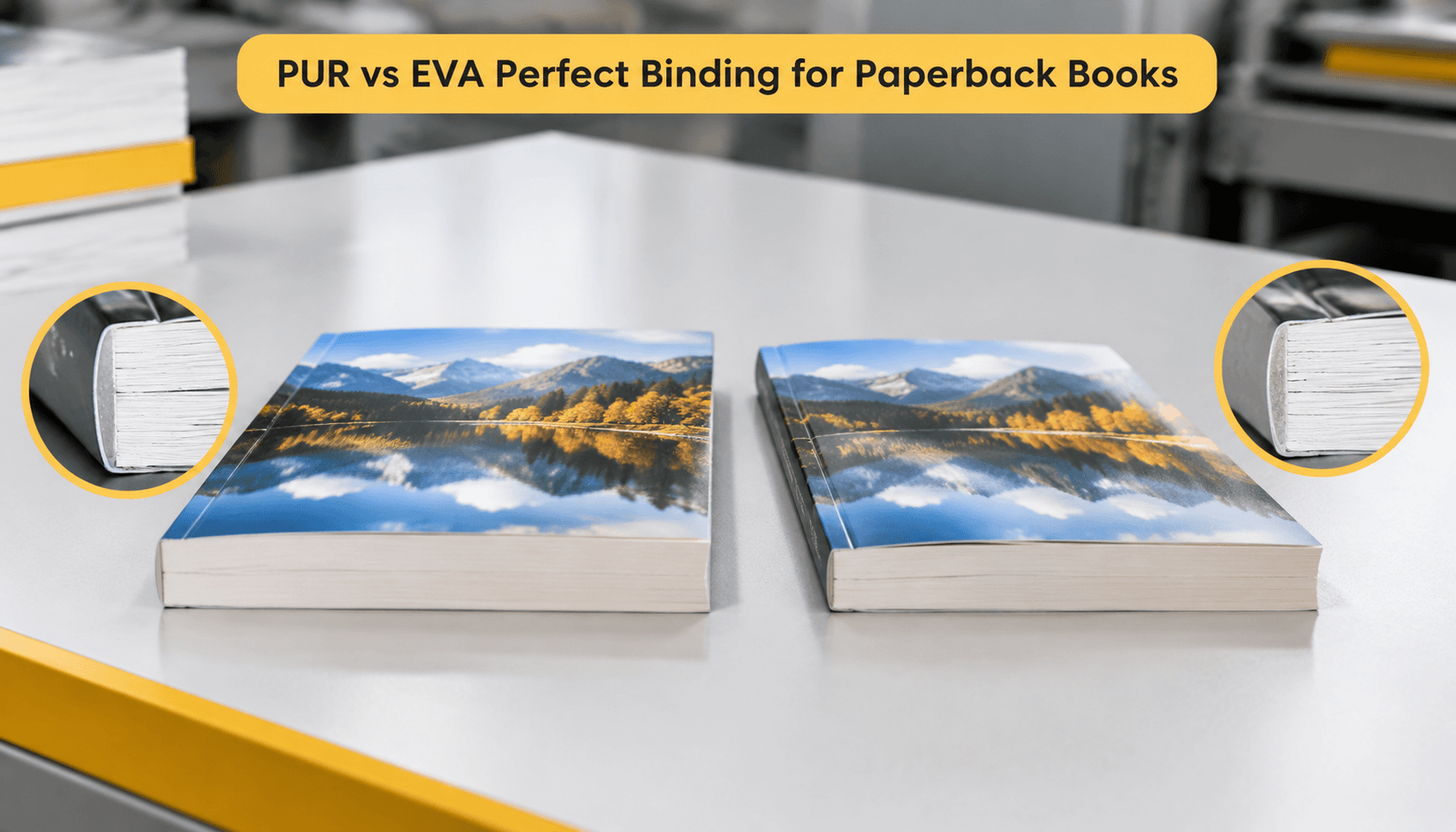
| Perfect bound | The glued spine holds the inside edge more firmly, especially in thicker books. | Required gutter, paper bulk and whether the first and last pages open comfortably. |
| Sewn or casebound | Sections may open better, but the construction still creates a spine-side area that should not carry critical text. | Inside margin, section structure and whether illustrations cross the gutter. |
| Saddle stitched | Nested sheets can shift toward the outside as the book grows, a result known as creep. | Page count, creep compensation and whether the format is suitable for the thickness. |
| Wire-O or spiral | Holes or wire occupy space along the binding edge and can affect page-turning clearance. | Hole position, inside margin and any divider or tab extensions. |
Use mirrored margins in your layout application, then add a binding-specific gutter rather than simply making both margins equal. Keep page numbers, running heads, captions and narrow columns away from the spine. Images that cross a spread should be positioned with the binding in mind; faces, product details and small type should not land across the center.
There is no single safe gutter measurement for every book. A short, thin saddle-stitched booklet and a thick perfect-bound manual have different risks. Ask the printer to confirm the inside margin after the trim size, page count, paper and binding are known.
Prepare text, images and color correctly
A reliable book interior combines clean typography, correctly sized images and a color workflow that matches the intended press process. Text-heavy pages need different treatment from photo-heavy pages, but both should be checked in the final exported PDF rather than only in the design application.
Before export, review the following:
- Use consistent paragraph styles, hyphenation and widows-orphans settings across the book.
- Check folios, chapter openings, running heads and section starts for intentional page placement.
- Confirm that fonts are licensed for embedding and that special characters display correctly.
- Check image dimensions at the size they will appear on the page, not just the original pixel count.
- Keep linked images, placed PDFs and imported graphics updated before export.
- Review overprint and transparency settings on pages containing vector illustrations or layered effects.
For CMYK book printing, the safest file strategy depends on the printer’s workflow. Many conventional offset interiors are prepared with CMYK images and an embedded output profile. Some digital workflows accept RGB images and convert them during production. Ask which workflow will be used instead of converting everything blindly, because a conversion can change saturated colors, dark neutrals and brand hues.
Separate readable black text from rich black areas

Small body text should normally use a single black ink, often represented as 100% K in a CMYK document. Large solid areas, dark photographic backgrounds and large display type may use a printer-approved rich black mixture, but rich black is not automatically better for small text.
Using several process colors for fine type can create slight registration edges if the plates or passes do not align perfectly. That risk is more visible in small serif type, reversed text and thin rules. Avoid using registration black for ordinary text; registration black places ink on all separations and can cause excessive ink coverage or drying concerns.
Check these details in the PDF or separations preview:
- Body text is not accidentally built from four colors.
- Reversed type is large enough and heavy enough for the selected paper and process.
- Rich black formulas follow the printer’s ink coverage guidance.
- Large dark backgrounds do not exceed the agreed total ink limit.
- Black objects do not have an unintended overprint setting.
Color on uncoated book paper can look softer and less contrasty than on coated stock. A physical proof or approved color reference is useful when the interior contains brand colors, skin tones or important illustrations.
Check resolution, transparency and image profiles
Images should be judged by their effective resolution at final placed size. A commonly used target for photographs in book printing is about 300 ppi at final size, while line art may require a higher resolution depending on its detail and output method. Enlarging a small image inside the layout does not create missing detail.
Inspect images that have been cropped, rotated or scaled. A 300 ppi source can become lower resolution if enlarged substantially, while an oversized source may increase file weight without visible improvement. For diagrams and logos, vector artwork is preferable where available because it remains sharp at the trim size.
PDF/X-4 is often a suitable modern export choice for a book interior because it supports embedded fonts, color profiles and live transparency when the printer’s workflow is configured for it. It is not a universal guarantee: some printers request another PDF standard or a specific output intent. Confirm the required standard before exporting.
Use a preflight report to check:
- Low effective image resolution.
- Missing or unembedded fonts.
- RGB, Lab or spot colors that are not expected.
- Transparency, blend modes and clipping masks.
- Page boxes, bleed and inconsistent page dimensions.
- Unexpected hairlines, hidden objects or overset text.
For a CMYK workflow, embed the agreed output profile and do not repeatedly convert the same image through different applications. Keep a native working file separately so corrections can be made without degrading the exported PDF.
Export and inspect the final PDF
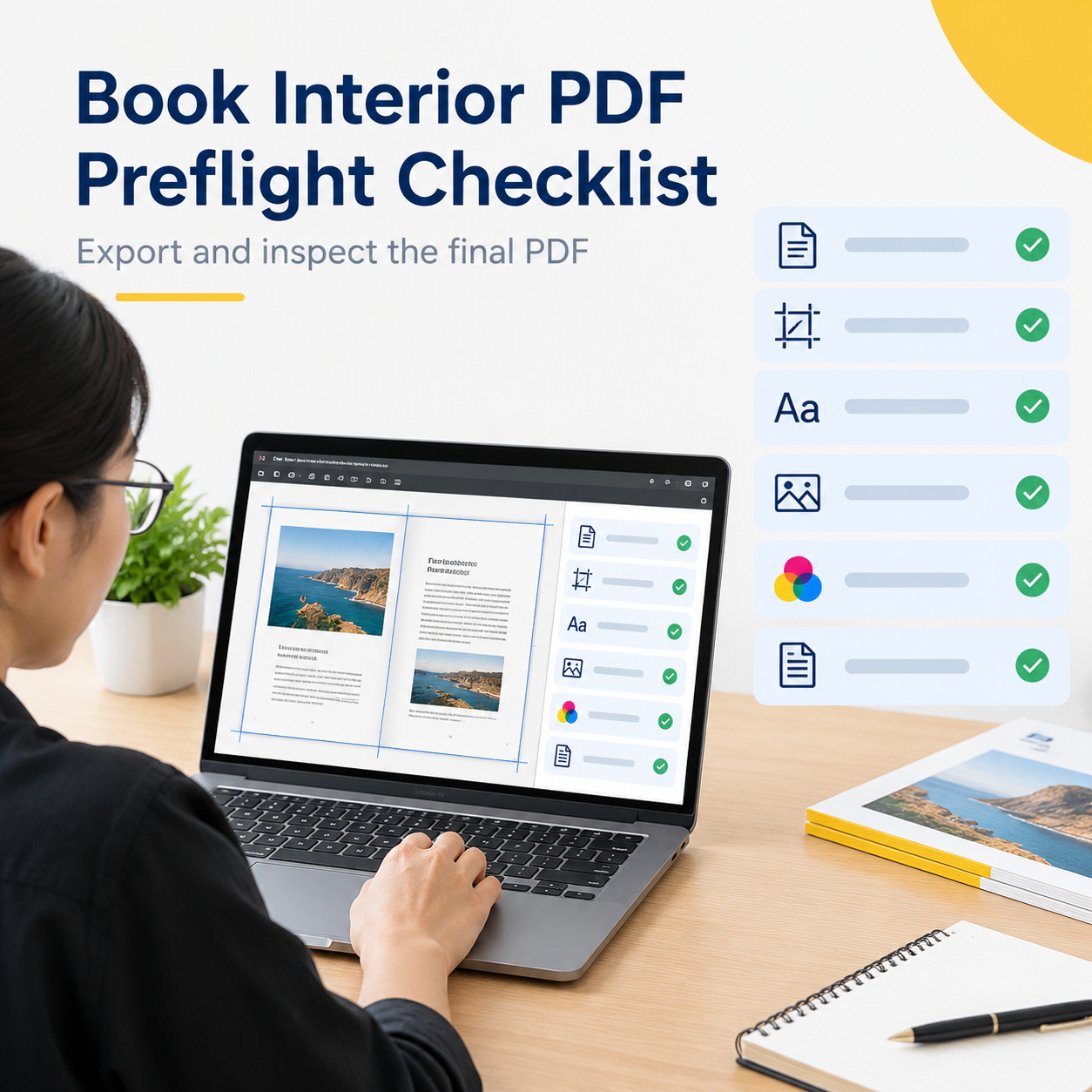
Export the final print-ready PDF only after the layout is locked, then inspect the actual PDF rather than assuming the export preserved the design. The PDF is the file that will be imposed and produced, so it is the correct object for the final check.
| PDF choice | Use when | Risk to manage |
|---|---|---|
| Single-page interior PDF | Most books supplied for commercial production | Do not accidentally export reader spreads or omit blank pages. |
| PDF/X-4 book file | The printer accepts PDF/X-4 and its workflow supports live transparency | Confirm output intent, profiles and transparency handling. |
| Printer-specified PDF standard | The supplier provides a template or written export preset | Follow the supplier’s preset instead of mixing settings from different standards. |
Use this final inspection sequence:
- Export with the printer’s requested PDF standard and output profile.
- Open the PDF in a separate viewer and confirm the page count.
- Check the first, last and several middle pages at 100% magnification.
- Review every spread for missing images, substituted fonts, clipped text and unexpected blank pages.
- Turn on trim, bleed and overprint previews where available.
- Run preflight and review warnings rather than dismissing them automatically.
- Compare the PDF against the approved layout and send the final version with a clear file name.
Do not make last-minute edits directly in the exported PDF unless you understand how they affect fonts, color and page boxes. Correct the native layout, export again and replace the previous file so the printer does not receive two competing versions.
What to send the printer with the interior file
Send the interior PDF together with a concise specification sheet. The printer needs both the artwork and the production context because trim, paper, binding and quantity determine how the file will be checked and produced.
Include the following in a quote or prepress package:
- Product type and intended use, such as novel, workbook, training manual, catalog or illustrated book.
- Finished trim size and orientation.
- Interior page count, including intentional blanks and color or black-and-white page requirements.
- Paper name, basis weight or GSM if already selected, and whether different stocks are used for inserts.
- Binding method and any special opening, lay-flat or foldout requirement.
- File format, PDF standard, bleed specification and color expectation.
- Quantity, packing preference, delivery destination and target date.
- Native source files or a packaged archive only if the printer requests them.
- A low-resolution reference PDF or contact sheet if the final file has complex sequencing.
Name files clearly, for example ProjectName_Interior_v03_TrimSize_PageCount.pdf. Mark one file as final and identify any pages that intentionally contain no artwork. If the cover is supplied separately, label it separately rather than combining it with the interior without instruction.
Lemon Printing’s in-house capabilities cover prepress, printing, binding, finishing, quality inspection, packing and export preparation. Sharing complete specifications helps the team assess the file against the intended production route.
Common book interior errors that delay production
Most avoidable interior corrections involve geometry, sequencing or file consistency rather than advanced design problems. A short preflight catches many of them before a proof or production slot is scheduled.
| Error | Why it matters | How to prevent it |
|---|---|---|
| Interior supplied as spreads | The printer may be unable to impose or inspect pages correctly. | Send single pages unless printer spreads are specifically requested. |
| Wrong trim size | Artwork, page numbers and margins can shift during production. | Build from the confirmed finished size. |
| No outside bleed | White slivers may appear beside edge-to-edge artwork after trimming. | Extend backgrounds and images beyond the trim on specified edges. |
| Gutter too narrow | Text or images can disappear toward the spine. | Confirm the inside margin using binding, page count and paper details. |
| Missing blank pages | Chapters, copyright pages or artwork can start on the wrong side. | Check pagination and intentional blanks in the PDF. |
| RGB or spot colors left unintentionally | Color may change during conversion or create an unexpected separation. | Use the agreed color workflow and preflight the PDF. |
| Low-resolution enlarged images | Photographs and illustrations look soft or pixelated in print. | Check effective resolution at final placed size. |
| Fonts missing or substituted | Line breaks, page count and text appearance can change. | Embed fonts or follow the printer’s approved font workflow. |
| Crop marks or design notes included | Marks can be mistaken for artwork or affect imposition. | Remove production marks unless requested. |
A printer should check more than whether the PDF opens. The practical review includes page size, page order, bleed, gutter risk, fonts, image resolution, color spaces, transparency, overprint and any pages that need special handling. Lemon Printing describes its quality controls and inspection approach on its quality control page.
FAQ: Print-ready book interior files
These questions cover the file decisions most likely to affect book prepress, proofing and production.
A printer should still confirm the final settings for the selected product. Final MOQ, production time, pricing and shipping depend on product specifications, quantity, finishing and destination.
Request a prepress review for your book project
The safest time to resolve an interior file problem is before a production proof is made. Prepare the PDF, specification sheet and any color references together so the printer can review the complete production context.
For a practical prepress review, send the product type, quantity, finished size, page count, paper, binding or finishing, delivery destination and target date. Lemon Printing can review the file against the requested production specifications and identify questions that should be settled before approval.
A print-ready book interior is not only a clean-looking PDF. It is a production component that matches the trim, paper, binding, color workflow and inspection requirements of the finished book.
FAQ
What is a print-ready book interior file?
A print-ready book interior file is a final PDF containing the inside pages at the confirmed trim size, with correct page order, bleed, safe margins, gutter allowance, fonts, images, color settings and PDF export settings. It is normally supplied as individual pages rather than a cover spread or printer spread.
How much bleed does a book interior need?
Many book printers commonly specify about 3 mm or 0.125 in of bleed on the top, bottom and outside edges for full-bleed interior artwork. The exact requirement varies, and the printer’s written specification takes priority. Do not add bleed to the binding edge unless specifically instructed.
What is a gutter margin in book printing?
A gutter margin is the extra inside margin near the spine. It keeps text, page numbers and important image details visible after binding. The required amount depends on the binding, page count, paper thickness and how well the book opens, so it cannot be selected accurately from trim size alone.
Should book interior files be CMYK or RGB?
For many conventional CMYK book printing workflows, images are prepared in CMYK with the agreed output profile. Some digital workflows accept RGB and convert it during production. Ask the printer which workflow applies before converting the complete book, because color conversions can change saturated colors and dark neutrals.
What PDF settings are suitable for book printing?
PDF/X-4 can be suitable when the printer accepts it and supports live transparency, embedded fonts and the selected output profile. Other workflows may require a different PDF standard or a supplied export preset. Use the printer’s requested standard, export single pages unless told otherwise and include bleed only as specified.
What should a printer check before approving a book interior?
The printer should check trim size, page count, page order, intentional blanks, bleed, safe area, gutter risk, fonts, image resolution, color spaces, profiles, transparency, overprint, total ink coverage and special pages such as foldouts. The file should also be reviewed at 100% and run through a preflight process before proof approval.
Get a Clear Quote for Your Printing Project
Send Lemon Printing your product type, quantity, finished size, materials, binding or finishing requirements, delivery destination and target date. Our team can provide a free prepress file check and normally respond within one business day with practical production options, pricing and a project timeline. Final MOQ, production time, pricing and shipping depend on product specifications, quantity, finishing and destination.